InfiniAIBook: A Self-Hosted AI Research Notebook
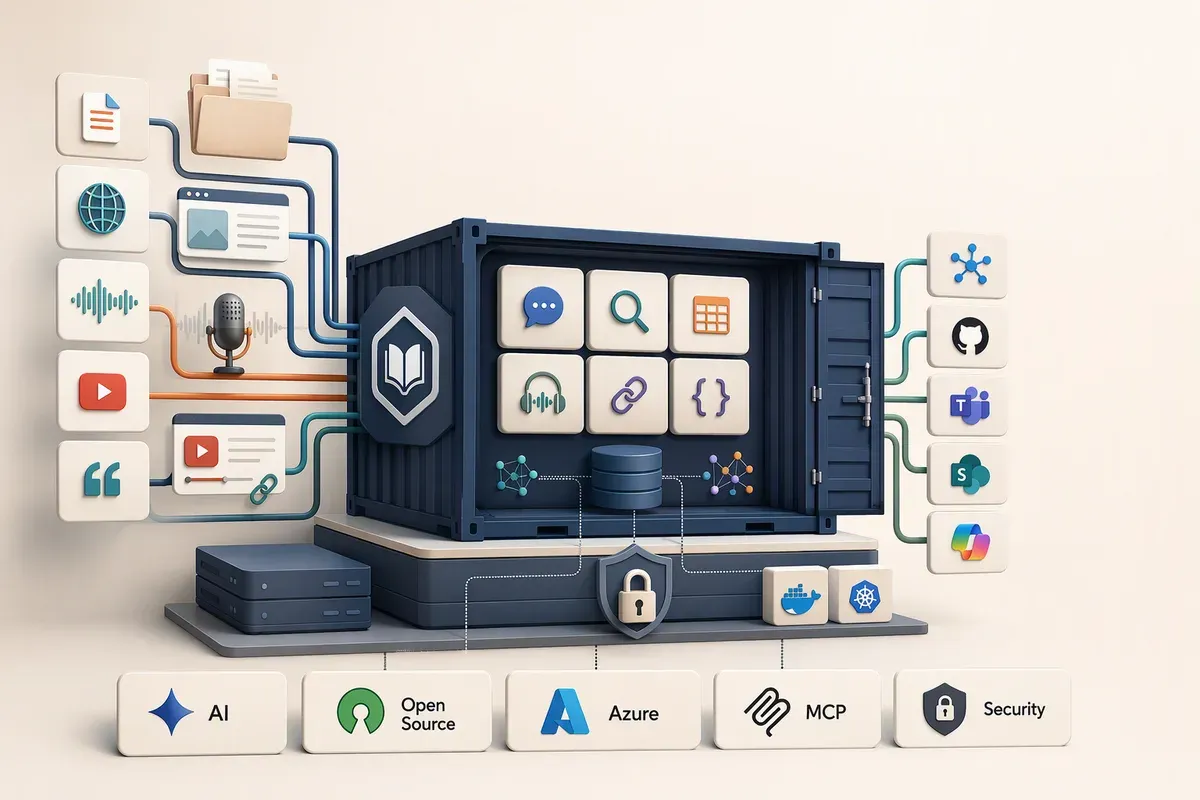
The “drop in your sources and talk to them” workflow is one of the most useful things AI has given researchers. Upload a stack of PDFs, a couple of web articles, and a recorded meeting, then ask questions and get answers that point back to the passage they came from. The sticking point is usually not the workflow. It’s the constraint around it: the content has to stay on infrastructure you control, or the model has to be the one your organization already approved.
InfiniAIBook is built for that situation. It’s a research notebook you run yourself and point at whichever model provider you choose, including Azure OpenAI or a fully local model. It started as a place to chat with sources, and it has grown into a full studio that also turns them into decks, infographics, quizzes, podcasts, and narrated videos.
This post walks through everything it does today: how it organizes content, what it can ingest, how chat, search, and live voice discussions work, every Studio format, how to run it locally or in Azure, and the security settings to change before anyone else can reach it.
Why?Last verified
Updated October 23, 2026, against the InfiniAIBook repository at that date. Menu labels and provider lists may have moved by the time you read this, and the project README and docs are the source of truth for configuration.
InfiniAIBook at a glance
- Stack: A Next.js and TypeScript app with a SQLite database. There’s no separate database server to run.
- Runs as: A Node.js app on your machine (Node 22.13 or later), a single
Docker container, or an Azure Container App. The web UI opens at
http://localhost:3000. - Where your data lives: One
.datafolder holds sources, embeddings, chat history, and generated media. - Cost: You pay whatever your model provider charges, or nothing if you run models locally.
- Who it’s for: One person or one small trusted group. It has a single shared password, not user accounts.
Notebooks, sources, and notes
Everything lives in one of three layers, and understanding them makes the rest of the app click.
A notebook is a container for one research project. Notebooks are isolated from each other, so a source in one never shows up in another’s chat.
A source is one piece of raw material, such as a PDF, a URL, or an audio file. Sources don’t change after you add them. If a document gets a new version, add it as a new source, or let InfiniAIBook re-check linked sources and tell you what changed.
A note is output. You can write notes by hand, save a chat answer as a note (citations stay attached), or let a transformation generate one. A note can also become a source, so chat and the Studio can draw on it.
If you need the same document in two projects, the From other notebooks option copies it in with its text, summary, and embeddings, so nothing is fetched or processed again.
The workspace is built to stay out of your way. The Sources and Studio panels can be pinned beside the chat or collapsed to a slim rail, a first-run guided tour shows where everything is (replayable from Help), and there’s a light theme next to the dark one. If your system asks for reduced motion, the app fades instead of sliding.
Getting content in
When you add a source, InfiniAIBook extracts the text, splits it into chunks, generates an embedding for each chunk, and stores the result so it’s ready for search and chat. Ingestion runs in the background, three items at a time, and the rest show as “Queued,” so you can keep adding while earlier items finish.
Why?What's an embedding, and why do I care?
An embedding is a list of numbers that represents the meaning of a piece of text. Two passages about the same idea end up with similar numbers even if they share no words. That’s what lets InfiniAIBook find “the section about access reviews” when the document actually says “periodic entitlement certification.” You need an embedding model configured for the best results. Without one, retrieval falls back to keyword ranking and says so.
Here’s what it accepts:
- Documents: PDF, Word, PowerPoint, text, Markdown, CSV, JSON, and HTML, up to 50 MB each. PowerPoint decks are read slide by slide, including speaker notes. A deck over the limit is read in your browser and only its text is uploaded.
- ZIP archives: Every supported file inside becomes its own source, titled with its path in the archive. Nested archives are opened, with caps on file count and expanded size.
- Images: Described by a vision model so they can be searched like any other source.
- Audio and video: MP3, M4A, WAV, OGG, FLAC, WebM, and MP4 files up to 25 MB, transcribed once a transcription model is configured.
- Web content: Article URLs, YouTube links, and RSS or Atom feeds.
- Pasted text: Available immediately, with no processing wait.
Two features help when you don’t have the material in hand yet. Search web takes a topic, expands it into a few queries, and lets you pick from the results (pages likely to block an automated fetch are flagged first). The built-in browser lets you read a page and keep what’s useful.
Paywalled pages and password-protected files can’t be extracted. Save the content another way and upload it as a file or pasted text.
Structure explorer
Some sources are data rather than prose. For JSON, XML, CSV, TSV, and HTTP Archive (“HAR”) files, a structure explorer opens the source as a path tree and graph with types and counts, or as a sortable table. HAR files get extra views: a request table, a waterfall, and findings such as failures, slow responses, uncached resources, redirects, and secrets in URLs. Diagnose with AI sends a redacted digest, never the raw archive, to the model to suggest likely root causes, and there’s a sanitized download for sharing.
Bring your own model
This is the feature that makes InfiniAIBook work in an enterprise setting. Named presets cover Azure OpenAI, OpenAI, Anthropic, Google Gemini, Groq, Mistral, DeepSeek, OpenRouter, xAI, Perplexity, and Together. Any OpenAI-compatible endpoint works too, including Ollama, llama.cpp, and LM Studio for local models.
Models are assigned by role. Only a chat model is required, and each optional model switches on a feature:
- Embeddings for semantic search and retrieval.
- Image for drawn infographics, whiteboard videos, and motion explainers.
- Vision for images and the screen helper.
- Transcription for audio and video sources.
- Realtime voice for live discussions.
- Azure AI Speech for every spoken format.
You can mix providers. Anthropic offers chat models only, so you’d pair it with
a separate embedding provider. If you’re on Azure, the app can sign in with
Microsoft Entra ID (through az login, or a managed identity when it runs in
Azure) instead of storing keys.
A few details worth knowing:
- A model picker in the workspace header switches the chat, embedding, image, and vision models without editing a settings file. If you change the embedding model, the notebook reports how many passages still use the old one and can re-embed them.
- A separate Studio script model can write scripts and scene plans, with chat reserved for everyday questions.
- Cloud providers get a daily spending ceiling of $25 by default, estimated across chat, image, speech, and discussion calls. You can raise it or turn it off.
- A local model on a CPU is slow. On a GPU or Apple Silicon it’s far quicker, but “no key needed” and “fast” aren’t the same thing.
Chat, grounded in what you selected
Chat is where most of your time goes. You tick the sources you want in play, and answers stream in built only from those sources, with numbered citations. Click a citation to open the source with the passage highlighted, so you can check the claim yourself. Stop ends an answer early and keeps what was written. With nothing selected, chat declines rather than quietly using everything.
That selection is also your privacy control. A source you haven’t ticked is never sent to the model, so a confidential document can sit in the same notebook as your public research. You can keep several chat sessions per notebook, so an unrelated question isn’t colored by an old thread, and save any answer as a note.
Search and Ask across notebooks
Search looks across every notebook at once, in two modes. Keyword search is instant and right for exact phrases, names, and error codes. Semantic search matches meaning, so it finds related content even when the wording differs. Ask goes one step further and returns a single grounded answer from the best passages across your whole library, citing the notebook each one came from.
Notes and transformations
A transformation is a saved prompt you run on a source to produce a note. Eight ship built in, including Dense summary, Key insights, Glossary, and Action items, and you can add your own. Results are cited like everything else. Test a new prompt on one source before relying on it, because a vague prompt produces vague notes.
Live discussions: talk it through
You can also talk to your sources. A live discussion is a spoken conversation with a realtime voice model that has read the sources you selected. You can interrupt it mid-sentence, the way you would a colleague.
Seven modes change what the AI does:
- Discussion: Explores the material with you.
- Debate: Argues the other side, using your sources as evidence.
- Q&A: Short spoken answers, with an offer to go deeper.
- Interview an expert: You ask, and it answers as the author of the sources.
- Get interviewed: It asks, follows up on vague answers, and pushes back when you conflict with the sources.
- Oral quiz: Spoken questions with instant feedback and a running score.
- Socratic tutor: Guiding questions that correct misconceptions with evidence.
When a point relies on specific passages, they appear as clickable citation chips on that line. If the conversation moves past what it started with, the AI searches your sources mid-sentence. When you hang up, Save to notes keeps the takeaways (checked against the cited passages), any marked answers, and the full transcript. It needs a realtime voice model, and your other models aren’t used for the call itself.
Screen helper: coaching for any app
The screen helper isn’t about your sources at all. You share an app window, type what you’re trying to do, and a vision model coaches you one step at a time. A numbered box on a snapshot of your screen shows where to click, and the step text names the control too, since the box is approximate.
With Auto-watch on, the helper notices when you’ve taken a step and the screen has settled, then suggests the next one without being asked. It can read steps aloud, and inside a notebook you can save a session as a note.
Studio: turn sources into finished pieces
The Studio panel turns the sources you’ve selected into fourteen formats. Create lists the generators, and Library holds everything already made in the notebook. A focus box at the top steers every generator, so one notebook can produce a video about the budget and another about the volunteer schedule. Every output is built only from your sources and carries citations.
| Group | Formats |
|---|---|
| Documents | Report, briefing, study guide, FAQ, timeline, and PowerPoint deck |
| Visuals | Infographic and mind map |
| Study | Quiz and flashcards |
| Audio and video | Audio overview, whiteboard video, motion explainer, and training video |
The written formats take a Length option, and the quiz and flashcards add a difficulty level. The video formats take a length too, either a preset or a custom number of scenes. Everything exports: Markdown for text, PPTX for decks, MP3 for audio, MP4 for video, PNG for mind maps and infographics, and a CSV that Anki and Quizlet accept for flashcards.
Documents, decks, and study aids
The PowerPoint deck has a title slide, an agenda, content slides, speaker notes, and a sources slide. You preview it in the app and download it as a PPTX file.
The mind map opens fully collapsed, so you start from the central topic and expand one branch at a time.
The quiz is multiple choice with a cited explanation under every question. After scoring, you can retry only the questions you missed. Flashcards flip, self-grade, and shuffle, and you can drill just the cards you missed.
Script review, instructions, and music
The four spoken formats (audio overview, whiteboard video, motion explainer, and training video) all work the same way. Generating one writes the script only, then stops and opens it in an editor. Nothing is narrated, drawn, or rendered until you press Narrate or Render video, so you can change wording, reassign lines, and remove anything you don’t want said before any time or money is spent.
Each one also has:
- Instructions to the script writer, such as “explain it for a non-technical audience” or “don’t mention pricing.”
- A replacement list of terms and what to say instead, enforced on the script and again right before speech. It’s saved per notebook if you want it to be the default.
- Background music from tracks you upload. No music ships with the app, so add only tracks you have the rights to use.
- A watermark on the three video formats: text or an image, in any of nine positions, with size and opacity settings.
Audio overviews
An audio overview turns a notebook into a spoken conversation, which is handy for catching up on a research pile during a commute. It supports one to four speakers, each with a voice, name, and role. Narrating produces an MP3 with a synced transcript you can click to jump to a topic. With a cloud speech provider, the provider receives the script, not your raw sources.
Infographics
Notes and chat answers work well when you’re the one reading them. When you need to hand research to someone else, a page of notes isn’t always the right format. There are 33 infographic styles. Some are laid out as web pages, so the text stays sharp and each number keeps a clickable citation. Others are drawn by your image model as a single picture. A style gallery shows every style rendered on the same sample notebook, so you can compare them before you spend a generation, and Suggest styles for my sources proposes three that fit your material. You can also pick the shape (landscape, portrait, or square), the level of detail, and describe what you want in a sentence or two.
If the Portal 360° name is new to you, the Portal of Portals deep dive covers what that infographic is summarizing.
Whiteboard videos
A whiteboard video is a narrated, hand-drawn explainer. The generator plans a short story of scenes (six in my samples), each with a hand-lettered title, one simple drawing, a caption, and a line or two of narration. The length picker offers Short, Standard, and Long, or a custom number of scenes or minutes. Then it stops so you can review the script.
When you press Render video, the image model draws each scene, Azure AI Speech narrates it, and the renderer animates a hand sketching the lines onto the board. A six-scene video takes about six and a half minutes end to end, mostly spent on the drawings. It runs in the background, so you can keep working while it builds.
Motion explainers
A motion explainer is a short, narrated 2D animation. It follows the arc of a product explainer: the problem, the solution, how it works, the benefits, and a next step on a closing card. Characters and props slide into illustrated scenes, headlines animate in, and stat cards count up.
The image model draws the backgrounds, the character, and the props. The motion itself comes from the renderer, not an AI model, which keeps the timing predictable. Under Options → Customize you can change the length, tone, audience, illustration style, colors, recurring character, closing call to action, resolution (720p or 1080p), and how much the character moves.
Training videos
The training video is the most involved format, and the one that has changed the most since I first wrote this post. It writes a trainer’s script from your selected sources and every note in the notebook: a welcome and learning objectives, a few teaching sections, a recap, and a spoken knowledge check. You choose the presenter, voice, length, and background on the card.
Once you’re happy with the script, the Azure AI Speech text to speech avatar renders a lip-synced presenter, with sign-in through Microsoft Entra ID. The presenter list is a gallery of Microsoft’s standard avatars, including the talking-head (photo) avatars, with a voice and speaking-style picker and a preview before you commit. Talking heads are drawn in a smaller frame so they sit beside the slides instead of filling them. You can also add gestures, so the presenter opens with a greeting and uses open-handed motions rather than standing still.
By default the presenter shares the frame with visuals: title cards, bullet points, key numbers, quotes, knowledge checks, pictures, screenshots, and the notebook’s own infographics. When a slide covers a Microsoft product, the planner can pull a real screenshot from the matching Microsoft Learn article and credit it on the slide. Each visual is pinned to a phrase in the script and appears as the presenter says it, so editing other parts of the script doesn’t knock it out of sync.
The editor has four tabs: Script, Visuals, Design (colors, layouts, transitions, logo, resolution, and captions), and Preview. The preview plays the composed video in your browser and costs almost nothing, so you can fix problems before any avatar time is billed. If you change only visuals, design, or music, Recompose video doesn’t render the presenter again.
Live presenter preview
Four newer talking-head presenters (Leonie, Leonie Professional, George, and Marcel) use Microsoft’s VASA-2 model. Azure AI Speech batch rendering doesn’t support VASA-2 yet, so the app offers them as a live preview instead. In a generated training video, choose Script > Preview live (VASA-2), pick a presenter and voice, then press Start session and Play transcript (or Play from here on any section). The presenter speaks the script as you’ve edited it, so there’s nothing to type.
A few facts to plan around:
- It’s live only. Nothing is recorded or added to the finished MP4.
- VASA-2 is in preview, and your Speech resource has to be in West US 2, Central India, Southeast Asia, or Sweden Central. The panel tells you when it isn’t.
- Your network has to allow WebRTC to
relay.communication.microsoft.com. - Sessions end after five idle minutes or 30 minutes total, and each start counts about 25 cents against the daily spending ceiling.
- The browser only receives a short-lived Speech token. Your keys and Entra token stay on the server.
What the visual formats need
Only a chat model is required to run InfiniAIBook. The visual formats switch on as you add more:
- Web-page infographics: the chat model.
- Drawn infographics: an image model.
- Whiteboard videos and motion explainers: an image model, Azure AI Speech for the narration, and Python 3 with a few imaging packages on the machine running the app.
- Training videos: Azure AI Speech for the avatar, plus the same Python packages for composing visuals. Avatar rendering is billed by the second of finished video, and finished sections are cached, so review the script before you render.
The README lists the exact settings and Python packages for each one.
More samples to watch and read
The videos above are ones I generated for this post. The project repository has longer samples built from a fictional community garden notebook, and a page for each format with setup details and timings:
- The README includes a 3:37 avatar training video, a 1:14 whiteboard video, and a 1:50 motion explainer.
- The Studio examples show every format, from report to flashcards, from the same notebook.
- The infographic style gallery compares all 33 styles on the same content.
The REST API
Everything the UI does is also available through the REST API, so you can script it: add sources from a pipeline, create a notebook per project, or pull notes into another tool. Browsers use a session cookie, and scripts send a bearer token. The API reference lists the routes.
Two housekeeping features are worth knowing before you invest in a notebook. You can export a notebook as a ZIP of its sources, notes, chats, artifacts, and finished media, and import it as a new notebook. And deletes are forgiving: removing a source, note, chat, or notebook offers Undo for eight seconds.
Standing it up
You need Node.js 22.13 or later and a model endpoint. Decide on the endpoint
first. The
install guide
now starts there: a table of capabilities (only chat is required) and a
reuse-or-create path for Microsoft Foundry, another provider, or a local model,
with az commands for the Azure route. One thing to know up front: a Copilot
Studio agent isn’t a model endpoint, so it can’t stand in for one. I’d also
follow the habit
from my vibe-coding toolkit post:
read what you download before you run it.
git clone https://github.com/russrimm/InfiniAIBook.git
cd InfiniAIBook
npm install
copy .env.example .env.local
Open .env.local, set a provider (the README and .env.example show the
settings for each), then start the app:
npm run devOpen http://localhost:3000, create a notebook, and follow the getting-started
steps in the chat panel. If you’ve never set up a Node.js app, the install guide
walks through Windows and Mac with no prior experience assumed.
To use Docker instead, run docker compose up -d --build. The container
publishes its port on localhost only. Whiteboard, motion, and training videos
need Python, so build with the Python option the README describes if you want
them. For a fully offline setup, point it at Ollama or llama.cpp.
Running it in Azure
When a team needs it, InfiniAIBook can run as an Azure Container App. The
repository includes Bicep templates that create a Container App in a virtual
network, private Azure Files storage for the database and media, a Key Vault, a
container registry, and a managed identity that calls Azure OpenAI and Azure
Speech without keys. The templates reuse an Azure AI Services account you
already have. A GitHub Actions workflow can deploy every push to main after
CI passes, signing in with OpenID Connect so no Azure secret lives in GitHub.
One fact to plan around: SQLite allows a single writer, so the app runs as exactly one replica. See Running in Azure for the full walkthrough.
Security: what it covers and what you add
The built-in protection is intentionally simple, and the project’s SECURITY.md is clear about it. Here’s what’s built in and how to fill each gap for a shared deployment.
| Area | Built in | What to add for a shared deployment |
|---|---|---|
| Network access | Listens on localhost only; other hostnames are refused | Use the LAN start option only after setting a password |
| Authentication | One shared password, off until you set INFINIAIBOOK_PASSWORD | Microsoft Entra sign-in or an identity-aware proxy for single sign-on |
| Sessions | Signed 30-day cookie, with a growing delay after failed sign-ins | Timeout enforcement at the proxy |
| Users and roles | None; everyone shares one login | Separate instances per team or audience |
| Transport | Plain HTTP on localhost | HTTPS through a reverse proxy or Azure Container Apps ingress |
| Data at rest | Stored unencrypted under the .data folder | Disk or share encryption, and protect the folder like the documents |
| Spending | A daily model ceiling of $25 for cloud providers | Budgets and alerts on your provider account |
Two more protections matter for a tool that reads other people’s content. The server fetches URLs on your behalf, so it refuses addresses that resolve to loopback, private, or cloud-metadata ranges, including after redirects. And source text can try to steer a model, so images in model output are shown as links rather than loaded, and the app sends a strict Content Security Policy.
Without a password, anyone who can reach the server can read every notebook and spend your model quota. For a personal instance on localhost, the defaults are fine. For anything a team will use, set the password, put it behind HTTPS, and add single sign-on before you load sensitive documents into it.
Where it fits
InfiniAIBook is a strong fit when you want the notebook-style research workflow and need a say in where the data lives and which model reads it. It runs anywhere Node.js or Docker runs, and it treats local and enterprise providers as first-class options. The trade-off is that you own the operations, including updates, backups, and the security layer around it.
If that trade-off works for you, start small: stand up the localhost instance, point it at one provider, and load a notebook with a project you’re actively working on. Ask a few cited questions, try a live discussion in Q&A mode, then generate a deck or a quiz and see whether it earns a permanent spot. The README is thorough when you’re ready to go further, and I’d love to hear what you end up using it for.
Get the latest learnings
Occasional notes on Azure, AI, and cloud architecture. No spam, unsubscribe anytime.
Related articles
See Every CSP Violation in Your Power Platform Apps
Power Platform sends CSP violation reports from code, model-driven, and canvas apps. Here's the small open source collector I built to triage them.
Microsoft Communications Portal: One Feed for Every Microsoft Update
What the Microsoft Communications Portal is, how it aggregates Power Platform, Microsoft 365, Azure, and Fabric update feeds into one dashboard, its defense-in-depth security model, deployment options with Azure Developer CLI or Docker, and how to contribute on GitHub.
An Hour with Azure SRE Agent
What Azure SRE Agent is, what setup actually looks like, and what happened when I pointed it at my own repo, my Application Insights telemetry across Dataverse, Copilot Studio, and Foundry, and then asked it for a health check on everything at once. Plus what connecting an incident platform buys you — autonomous mitigation, a verification loop, and a handoff straight to the GitHub Copilot coding agent — the five switches worth flipping that you don't get turned on by default, and what the newly published Zero Ops framework recommends, including the two governance layers above per-tool Allow and Ask and three details worth verifying against the current docs.
Comments
Comments are hosted by GitHub Discussions. Loading them connects your browser to giscus.app and GitHub.