Sonnet 5.5 vs Opus 5.5: Same Prompt, Two Models = Two Different Apps
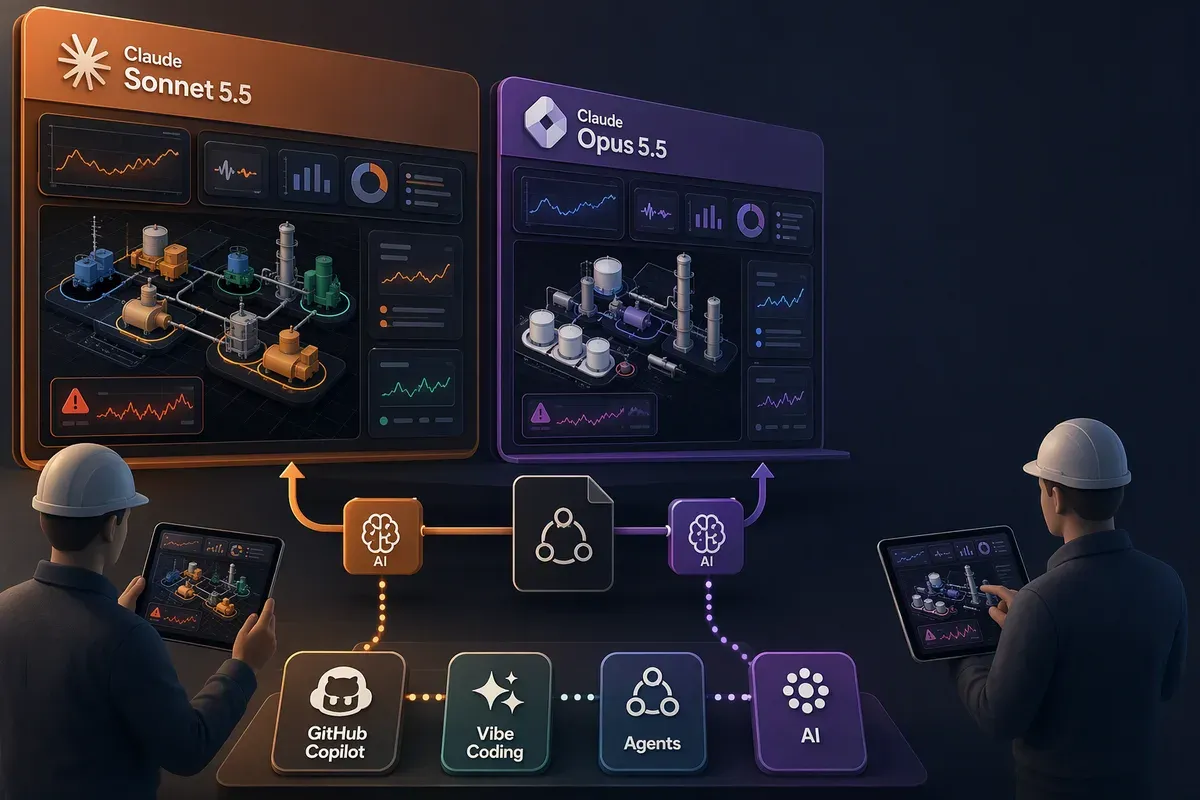
I gave GitHub Copilot the same build prompt twice, once with Claude Sonnet 5.5 and once with Claude Opus 5.5, to see how they would differ. The prompt asks for “Energy Profit Twin,” a demo operations app for a fictional gas plant. It needs a 3D facility view, alerts, a scenario calculator, value tracking, a data sources page with CSV import, and an assistant that answers from the app’s own data.
Both apps work. Both pass their own tests, and both tell the same story about a compressor (CR-204) that uses more energy while moving less gas. So the useful question isn’t “which one works.” It’s what each model chose to do with the room the brief left open.
Everything below comes from running both finished apps side by side and clicking through them. Screenshots are 1440×900 unless noted, with Sonnet on the left and Opus on the right.
The prompt
Here is the full prompt, so you can see exactly what each model was working from. It’s long, so I collapsed it. I use “brief” and “prompt” interchangeably below.
Show the full build brief (252 lines)
# Build Brief: Energy Profit Twin

You are a senior product designer and full-stack engineer. Build a polished, working MVP of **Energy Profit Twin**: an operations application for energy companies that combines an interactive 3D view of an energy facility with operational data, AI-assisted investigation, scenario comparison, and a transparent financial case for taking action.

The product should help an operations or reliability team answer:

1. What is happening at the facility right now?
2. Which issue should we investigate first?
3. What evidence supports that assessment?
4. What could the proposed action change?
5. How will we verify whether it created value?

Build the application in the current project repository. First inspect the existing files, framework, scripts, and conventions. Reuse the project’s existing stack where practical. If the repository is empty, use the default stack below. Do not stop after producing a plan or static mockup: implement a navigable application with working interactions and realistic seeded data.

## Product principles

- Make the 3D facility view useful for finding and understanding operational issues. It must be linked to assets, trends, alerts, and recommended actions.
- Tie every financial estimate to visible inputs and an explainable formula.
- Label all supplied demo data and generated values as **illustrative**. Never imply that sample data represents verified customer savings.
- Keep people in control. The MVP may recommend, simulate, prepare, and track actions, but it must not operate or send commands to real equipment.
- Make the application useful on a large operations-room display, laptop, and tablet. Support mobile layouts for review and triage.
- Prefer a smaller number of complete workflows over many empty screens or decorative controls.

## Default technology choices

If there is no existing stack to preserve, build a TypeScript React application using:

- Vite for the application shell.
- React Three Fiber and Three.js for the interactive 3D facility.
- A clean component library or well-structured custom components for charts, tables, forms, drawers, and navigation.
- A typed, modular data layer with seeded demo data and local persistence for user-created demo changes.
- A simple charting library already available in the project; otherwise choose one that works well with React.

Keep the MVP runnable locally without external credentials, paid services, or live industrial-system access. If you add an LLM integration point, use a server-side adapter and environment variable for the key. The application must remain fully demonstrable without a key by using a clearly labeled deterministic demo assistant.

## Primary user roles

Include these roles in the experience, even if authentication is simulated:

- **Operations manager:** sees facility status, production or generation impact, and actions requiring attention.
- **Reliability engineer:** investigates equipment health, supporting evidence, maintenance history, and potential interventions.
- **Energy manager:** examines energy intensity, consumption, and efficiency opportunities.
- **Finance or executive viewer:** reviews estimated and verified value, assumptions, and pilot performance.
- **Administrator:** reviews data sources, data quality, and demo access settings.

Provide a simple demo role switcher. Show role-appropriate landing priorities or permissions where practical. Label this as a demonstration feature, not production authentication or authorization.

## Application navigation

Create a professional desktop layout with a left navigation rail or sidebar, a top bar, a global facility selector, a date/time range control, an alert indicator, and a user/demo-role menu.

Include these areas:

1. **Overview**
2. **3D Facility Twin**
3. **Alerts & Opportunities**
4. **Scenario Lab**
5. **Value Tracking**
6. **Data Sources & Quality**
7. **Activity Log**

Keep the navigation coherent at smaller widths. On mobile, use a compact menu and focused detail views instead of compressing the desktop layout.

## MVP workflows

### 1. Overview: understand site health at a glance

Build an executive and operations landing page with:

- Selected site name, facility type, local time, and data freshness.
- A clear overall status and counts for critical, warning, and informational alerts.
- Headline operational metrics such as production or generation, energy use, energy intensity, availability, and estimated value at risk.
- Trend cards with meaningful time ranges and units.
- “Top opportunities” ranked by estimated value, urgency, and confidence.
- Recent events and actions.
- A prominent link into the 3D twin focused on the most important active issue.

Do not invent live readings. The demo should visibly say that its readings are simulated.

### 2. 3D Facility Twin: locate and understand issues

Create an interactive, code-generated 3D model of one representative facility, such as a gas processing site with a process train, compressors, pumps, tanks, pipes, and a control building. Use Three.js geometry and materials; do not rely on a static image as the 3D experience.

The view should support:

- Orbit, pan, zoom, reset view, and selectable assets.
- A readable asset label on hover or selection.
- Status colors with a visible legend, accessible contrast, and a non-color status cue such as an icon or label.
- Filters for asset type and status.
- A focus or “fly to asset” action from an alert, opportunity, or search result.
- A details panel showing asset name, type, status, last update, key metrics, active alerts, and recent maintenance.
- Metric overlays or visual flow cues that can be toggled on or off.
- A clear fallback message if 3D rendering is unavailable, with the same asset information available in a list.

Make the initial scene visually impressive but legible. Use a restrained industrial palette, clean lighting, subtle animation only where it helps show flow or status, and avoid visual effects that make controls hard to read.

### 3. Alerts & Opportunities: prioritize investigation

Create an alert and opportunity workbench with filtering, sorting, search, and detail views.

Each item should include:

- Title, asset, severity or opportunity type, detected time, status, confidence, and estimated impact.
- A plain-language explanation of what changed.
- Supporting signals with values, timestamps, units, and trend context.
- Links to related assets, events, maintenance history, and the relevant place in the 3D twin.
- A clear distinction between observed facts, calculated estimates, and recommendations.
- Actions to assign an owner, change status, add a note, or dismiss with a reason.

Provide practical statuses such as **New**, **Investigating**, **Action planned**, **Resolved**, and **Dismissed**. Persist demo changes locally and record them in the activity log.

### 4. Scenario Lab: compare possible actions safely

Let a user open an opportunity and create a simple scenario comparing:

- Current or baseline operation.
- One or more proposed actions.
- Expected operational effect, estimated cost, downtime or risk, and projected financial effect.
- Assumptions, confidence, time horizon, and source of each input.

Provide side-by-side comparisons and a clear “illustrative estimate” label. Show the calculation details rather than only a summary score. Let users save a scenario, edit assumptions, add a note, and mark it as proposed or rejected.

The MVP does not need a high-fidelity physics simulator. Use transparent, editable scenario assumptions and clearly distinguish them from measured data.

### 5. Value Tracking: make the business case auditable

Include a value dashboard that separates:

- **Estimated opportunity value**
- **Approved or planned value**
- **Verified realized value**

For each value record, show the linked issue, asset, action, time period, calculation inputs, owner, and verification status. Allow an authorized demo role to mark an action complete and enter actual outcome values. Never automatically convert an estimate into realized savings.

Use this calculation structure, with explicit inputs and units:

- Recovered production value = recovered production quantity × net margin per unit
- Energy savings value = avoided energy use × applicable energy cost
- Avoided maintenance or downtime value = documented avoided cost, entered and verified by a user
- Net value = selected benefit categories − implementation cost

Avoid double counting. Let users select which benefit categories apply to a record and show a warning if categories may overlap. State the calculation period and annualization assumptions whenever a value is annualized.

Provide a downloadable CSV report for filtered value records and a clean, print-friendly summary view.

### 6. Data Sources & Quality: show where information comes from

Build a lightweight data-source and quality page that makes the MVP’s integration approach credible without claiming that real connectors exist.

Include:

- Example source cards for historian/SCADA, CMMS or work orders, asset registry, production or generation data, and energy pricing.
- Source status, last refresh, record count, mapped fields, and data-quality warnings.
- A demo **CSV import** flow for asset, telemetry, or maintenance data. Validate required columns, show a preview, explain rejected rows, and allow cancel before import.
- A sample CSV download or clearly documented expected schema.
- A typed connector interface or adapter layer so future real integrations can be added without coupling the UI to a specific vendor.

Do not connect to operational technology or customer systems in this MVP. Do not claim an integration is production-ready unless it actually is.

### 7. AI Operations Assistant: grounded, useful, and cautious

Add an assistant panel that can answer questions about the seeded site and imported demo data, such as:

- “What changed on this compressor?”
- “Which open issue has the highest estimated value?”
- “What evidence supports this opportunity?”
- “Compare the two proposed actions.”
- “Summarize the last shift’s important events.”

The assistant must:

- Use only data available in the application or explicitly provided demo reference material.
- Cite the records, readings, events, or assumptions used in each answer, linking back to them in the UI.
- Say when the data is missing, stale, contradictory, or insufficient.
- Separate facts from estimates and recommendations.
- Never fabricate measurements, savings, work orders, or causal explanations.
- Never present itself as an autonomous operator or safety authority.
- Provide a deterministic demo mode when no model API is configured. In demo mode, clearly label responses as scripted or rule-based.
- Keep secrets and model credentials out of browser code and local storage.

### 8. Activity Log: make changes reviewable

Record user actions such as assignment, status changes, comments, scenario edits, value verification, and data imports.

Each entry should show actor/demo role, timestamp, action, affected record, and relevant before/after values. Provide basic filters and search. This is an application activity log for the MVP, not a claim of a compliant or tamper-proof audit system.

## Demo scenario and seeded data

Seed a fictional site named **Cypress Ridge Gas Processing Plant**. Make it clear in the interface that the site and all values are synthetic demonstration data.

Include a small, internally consistent set of assets, such as:

- Compressor CR-204
- Pump P-118
- Gas turbine GT-01
- Separator SEP-03
- Cooling system CW-02
- Connected process lines and storage equipment

Include enough synthetic time-series readings, events, alerts, and work-order history to demonstrate filtering, trends, data provenance, and the assistant. Add one main story: a compressor whose energy intensity has increased while throughput has decreased, creating an investigation opportunity. Include at least one unrelated alert, one maintenance-history clue, and two proposed actions with different assumptions so the scenario comparison is meaningful.

Make all dates relative to a fixed demo dataset date or the system date consistently. Give every reading a unit, timestamp, asset ID, and source. Do not use implausibly precise data or imply these values represent actual industry performance.

## Visual and interaction design

Aim for a polished industrial operations product suitable for a CIO demo:

- Clear typography, strong hierarchy, generous spacing, and a restrained dark navy/charcoal interface with bright but sparing status accents.
- A consistent design system for buttons, filters, tables, metric cards, drawers, dialogs, tooltips, and empty/error states.
- High-quality loading, empty, validation, and failure states.
- Charts with readable labels, units, legends, and accessible tooltips.
- Keyboard-accessible navigation and controls; visible focus states; labels that do not rely on color alone.
- Useful confirmation for destructive actions and clear success/error feedback for user actions.
- No lorem ipsum, dead buttons, placeholder cards, or controls that look interactive but do nothing.

Use sensible animation for navigation and 3D interaction, but respect reduced-motion preferences.

## Data model and implementation quality

Define typed models for at least:

- Site
- Asset
- TelemetryReading
- Alert or Opportunity
- MaintenanceRecord
- Scenario
- ValueRecord
- DataSource
- ActivityEvent
- AssistantMessage and its evidence references

Keep calculations and business rules in tested utility functions, separate from presentation components. Include realistic loading and error handling even when data is local. Use local storage only for demo preferences and user-created demo changes; include a reset-demo-data action.

Add a concise README with setup instructions, environment variables, demo limitations, CSV schemas, and a short guided demo flow.

## Acceptance criteria

The MVP is complete when a user can:

1. Start the app locally using the README instructions.
2. Explore the overview and understand that the dataset is synthetic.
3. Navigate the 3D model, select an asset, and open the related asset details.
4. Open the compressor opportunity from the dashboard or alert list and trace it to evidence.
5. Compare two editable proposed actions in the Scenario Lab.
6. Assign the opportunity, change its status, add a note, and see those changes in the activity log.
7. Review an estimated value, inspect its inputs, and record an actual outcome without treating the estimate as verified savings.
8. Import a valid sample CSV, see validation feedback, and use the imported data or see exactly why rows were rejected.
9. Ask a supported assistant question and receive an answer with clickable evidence—or receive a clear “not enough data” response.
10. Use the main workflows on desktop and a narrow mobile viewport without clipped or inaccessible controls.

Before finishing, run the available build, type-check, and tests. Fix errors that block the app or its core workflows. In your final response, summarize what you implemented, how to run it, what is demo-only, and what verification you completed.
The short version
- Both are real, working apps. Each passes A tool that scans code for mistakes and style problems without running it., A check that the pieces of the code agree with each other about what kind of data they handle., The step that packages the source files into the version of the app that gets hosted., and Small automated checks that run parts of the code and confirm they return the expected results..
- Opus is more polished and closer to the brief. The 3D scene, the overview page, and the data sources page show the biggest gap.
- Sonnet is leaner and holds up well. Its alert workflow, scenario comparison, value tracking, and assistant are all solid, and its bundle is slightly smaller.
- If you only looked at the Alerts or Assistant screens, you might not guess which model built which.
By the numbers
| Sonnet 5.5 | Opus 5.5 | |
|---|---|---|
Source files in src/ | 38 | 47 |
Lines in src/ (including tests) | 9,436 | 11,048 |
| Unit tests | 51 passing (5 files) | 54 passing (6 files) |
| Linter | ESLint, clean | oxlint, clean |
| Main JavaScript bundle (compressed) | 239 KB + 248 KB 3D chunk | 259 KB + 256 KB 3D chunk |
| Assets in the 3D model | 9 | 13 |
| Optional model-backed assistant | No, scripted only | Yes, through a server-side adapter; scripted by default |
| Routing | Hash routes (#/alerts), hostable anywhere | Path routes, need a single-page-app fallback on the host |
| Extra docs | README | README, docs/BUILD_PROMPT.md, .env.example, an in-app About page |
The bundle is the JavaScript a browser downloads to run the app. Hash routes put the page name after a # in the address, so any plain static host can serve them. Path routes use clean addresses like /alerts, but the host has to be told to send every address back to the app. Sonnet’s smaller bundle and simpler hosting are real advantages. Opus spent its extra 1,600 or so lines on depth.
Overview page
The brief asks the landing page for site local time, data freshness, headline metrics (production, energy use, energy intensity, availability, value at risk), trend cards, top opportunities, and recent events.
Opus’s page has all of it above the fold: a status strip with a one-click “Investigate in 3D twin,” five metric cards with changes against the prior period, two trend charts, ranked opportunities, and an event feed. Time zones are labeled (CDT).
Sonnet’s first screen is a role-focused “what to do today” card and four counters: open critical, warnings, opportunities, and assets. The headline operational metrics and the local time and freshness line aren’t on the page. It does have a CR-204 energy-intensity chart and a data-trust warning further down. One detail to know about: the x-axis on its trend chart repeats day labels (“Oct 1, Oct 1, Oct 1”).
The 3D twin
This is the widest gap. Sonnet builds the plant from boxes and cylinders joined by thin lines. It’s legible, and the status rings and flow dots work, but it reads as a diagram, and the default camera crops the right edge of the plant.
Opus models a flare stack, a dehydration column, a pipe rack with real pipe runs, tanks with banding, and a cooling tower. Each asset carries a label with a live value (9.05 MW, 46 %, 7.5 mm/s). The panel adds 3D/List toggles, Labels, Metrics, and Flow toggles, and Stale data and Offline states on top of Normal, Advisory, Warning, and Critical.
Sonnet’s side panel shows a readings table with 24-hour change and a trend chart. Opus’s shows asset metadata, a data-quality warning (“flow meter last calibrated 14 months ago”), “Fly to asset” and “Ask assistant” buttons, and Metrics, Alerts, Maintenance, and Events tabs.
Both also show asset information as a list, so the brief’s “fallback if 3D isn’t available” is covered.
One caveat on the 3D screenshots: I captured them with Drawing the 3D scene on the computer's main processor instead of a graphics card. It works, but it can look slightly different. in headless Chromium (a browser with no visible window), not on a graphics processing unit (“GPU”). On a real GPU they may look a little different.
Alerts and opportunities
Sonnet uses a card list on the left and a detail pane on the right. The detail pane has the pieces the brief asks for: “What changed,” evidence labeled Fact or Estimate, owner and status dropdowns, and links into the twin, scenario, and value records.
Opus uses a table sorted by score (severity, status, owner, confidence, estimated impact, detected, score) with a detail panel that slides in, a “Back to list” link, and the same fact, estimate, and recommendation split. On a wide screen the table packs more information into each row. Sonnet’s list-beside-detail layout makes it quicker to move between items.
This is the closest the two come to each other.
Scenario Lab
The priorities differ here. Sonnet leads with a side-by-side comparison table (baseline, Option A, Option B) with the dollar lines you care about. Opus leads with the baseline and shared finance assumptions, each marked Measured, Calculated, or Finance assumption, with the arithmetic printed next to the result (8.0 MMscf/d × 90 d × $450/MMscf). It also adds Mark proposed, Mark rejected, Duplicate, and Add action.
For a finance reviewer, I prefer Opus’s show-your-work layout. For a quick comparison, Sonnet’s table gets there faster.
Value tracking
Both keep estimated, planned, and verified value in separate buckets and state that they should never be added together, which is what the brief wanted. Sonnet adds a fourth bucket (“completed, not yet verified”) and annualization notes. Opus adds a search box, an owner column, and a CSV export that shows the row count on the button.
Data sources and CSV import
Sonnet’s source cards list field mappings and warnings in the open, which makes the cards tall and dense. Opus collapses the mapping details, adds a “Test connection” button per source, and states the integration approach at the top. Further down it prints the connector interface (SourceConnector<TRecord>), so you can see where a real adapter would plug in.
CSV import works in both. Each previews rows, shows accepted and rejected counts, and gives a line number and reason for each rejected row. Opus puts a column-schema table and Assets, Telemetry, and Maintenance tabs in front of the upload.
The assistant
I expected a gap here and mostly didn’t find one. Asked “What changed on CR-204?”, Sonnet’s scripted assistant returns a long, well-grounded answer: six before-and-after readings, the related events and maintenance records, an estimate, a recommendation, a caveat that causation isn’t established, and a list of evidence records. Opus returns the same ingredients with clickable citation chips and a “Limits and caveats” section.
The difference is presentation. Sonnet’s panel docks into the page, and the suggested-question chips take up half the panel height, which leaves less room for the answer. It also writes time ranges as “14-6 days ago mean” and lists events in Coordinated Universal Time. Opus’s drawer overlays the page and keeps the answer area large.
Opus also includes a server-side adapter (server/assistantPlugin.ts) so you can point the assistant at an OpenAI-compatible endpoint with a key. It falls back to the scripted answer if the model call fails. The brief allowed this but didn’t require it. Sonnet doesn’t have one.
Mobile
The brief says to use a compact menu and focused detail views on mobile instead of compressing the desktop layout. Opus gets closer: a compact one-row header with the facility name shortened to fit. Sonnet stacks the facility picker, time range, alert chip, assistant button, and role selector one after another, which uses most of the first screen before any content appears.
In both, the 3D view starts partway down the screen because filters sit above it.
What Opus added that the brief didn’t ask for
Both apps have the five demo roles. Opus gives them names (Marcus Reyes, Dana Whitfield, Leah Okafor, Priya Natarajan, Sam Castillo) and describes what each role is for in the picker.
It also adds an About page that documents the app, its principles, and its stack, and shows the build brief itself with Copy and Download buttons. A .env.example file and a docs folder match the optional model adapter.
What I’d take away
- When the brief is specific, both models follow it. The data story, the roles, the “illustrative” labeling, the fact and estimate split, and the CSV validation are all present in both.
- Where the brief asks for “visually impressive but legible,” Opus invests more. That’s the 3D scene and the overview page.
- Sonnet is a good fit when you want a smaller, simpler result: fewer files, a slightly smaller bundle, and hash routing that works on any static host.
- Most of Opus’s extras are useful, and some are scope you’d own afterward. A model adapter and an About page are nice for a demo, and they’re more code to maintain.
How I compared them
- Both projects pass lint, type-check, build, and unit tests.
- I served each production build locally and captured screenshots with Playwright (Chromium, 1440×900, and 390×844 at 2× for mobile).
- Line and file counts cover
src/only. The Opus project also has aserver/folder (about two files) that isn’t in its line count. - Both apps came from the same prompt (shown above), which is why they build the same plant, the same CR-204 story, and the same screen list. This post doesn’t compare how many turns, how much time, or how many premium requests each run took.
- This is one run per model. A second run could look different, because Copilot’s output varies from run to run.
If you run your own comparison, keep the brief identical and write down turns, time, and cost as you go. That’s the part this post can’t tell you.
Get the latest learnings
Occasional notes on Azure, AI, and cloud architecture. No spam, unsubscribe anytime.
Related articles
I Had 27 MCP Servers and Four Doing the Same Job. So I Built AI Harness Helper
AI Harness Helper brings your coding tool settings into one view, finds duplicate MCP servers, and estimates how much context your instruction files use.
Customizing GitHub Copilot: A Quickstart for the Best Experience
A 20-minute quickstart for customizing the GitHub Copilot app as a non-coder: instructions, agent skills, MCP servers, custom agents, and plugins.
Six Business Apps in One Sunday with Copilot Studio's Copilot Managed Runtime App Studio
I had an agent build six demo apps in Copilot Studio in one day, then wire one to live energy data through custom connectors. Here's what review taught me.
Comments
Comments are hosted by GitHub Discussions. Loading them connects your browser to giscus.app and GitHub.